Trezor Login — Secure Access to Your Hardware Wallet
Everything you need to know about signing in, authenticating, and safely using your Trezor device with Trezor Suite and compatible wallets — explained plainly for beginners and power users.
What does “Trezor Login” mean?
“Trezor Login” refers to the process of authenticating yourself and accessing your cryptocurrency accounts using a Trezor hardware wallet (for example, Trezor Model T or Trezor One). Unlike web logins that depend on usernames and passwords stored on remote servers, Trezor’s access model uses a physical device and cryptographic confirmations — your private keys never leave the hardware. Login typically happens through the official desktop app (Trezor Suite) or via a compatible Web3 interface, and every action — including signing transactions — must be confirmed on the device itself.
How Trezor Login Works — high level
At its core, Trezor login is a direct result of hardware-based key control and device confirmation:
- Device-based keys: Private keys are generated and stored inside the Trezor device — they never get copied to your computer or phone.
- Local signing: When a login or transaction requires authorization, the unsigned data is sent to the device. The device displays details and asks you to confirm; only then does the device sign cryptographically.
- PIN & optional passphrase: You protect the device with a PIN. An optional passphrase adds a second secret layer that creates hidden wallets (advanced use).
Quick Checklist — Before logging in
- Use a clean, trusted computer or the official Trezor Suite app.
- Verify the device is untampered and purchased from an official channel.
- Have your PIN ready — never share it.
- Keep your recovery seed offline and inaccessible during login.
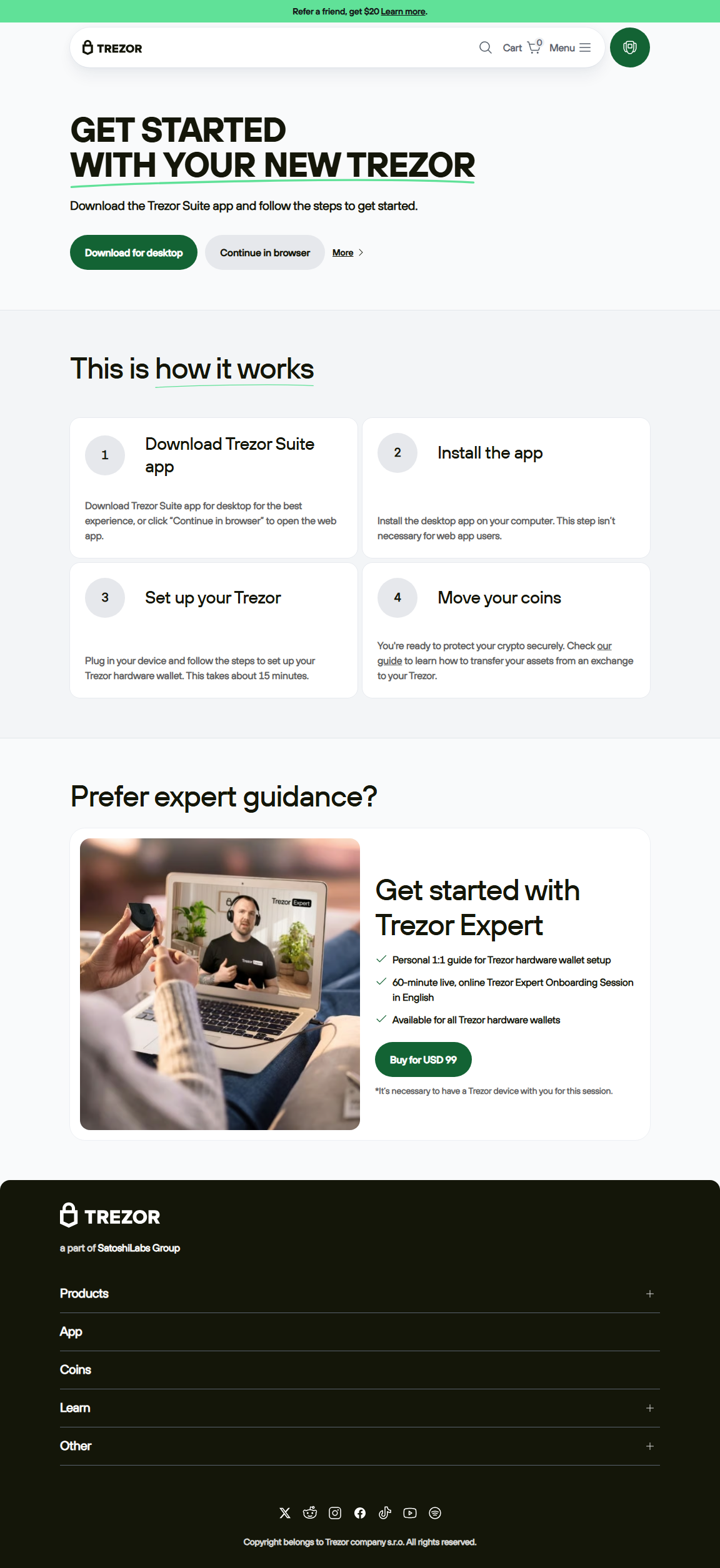
Step-by-step: Logging into Trezor Suite (desktop)
- Open Trezor Suite: Launch the official Trezor Suite application you downloaded from the verified Trezor website.
- Connect your Trezor device: Use the supplied USB cable to attach the Trezor to your computer. Wait for Suite to detect it.
- Enter your PIN on the device: The Suite will prompt you; enter the PIN directly on the Trezor keypad/screen — never on the computer keyboard.
- (Optional) Enter passphrase: If you use a passphrase, provide it when requested. Remember: the passphrase is never stored by Trezor and acts like a second seed.
- Access your dashboard: After successful authentication the Suite displays accounts, balances, and options to send/receive or manage apps.
Logging in with Web Wallets / DApps
When connecting to Web3 interfaces (wallet connectors like WalletConnect or direct site integrations), the website asks for a connection. Trezor will show the request on-device, and you must physically confirm the signature. This protects you from remote spoofing: you always see the transaction details on the secure screen.
Mobile login — limited workflows
Trezor's mobile experience varies by model and third-party app. Some mobile wallets support Trezor via USB-OTG or bridge solutions; always use official or well-reviewed integrations and confirm actions on-device.
Common login issues & fixes
Security best practices for Trezor Login
- Verify software source: Always install Trezor Suite from the official site and verify checksums / signatures where provided before launch.
- Enter PIN on device only: Never type your PIN or seed into a computer or phone. The device is designed to record input securely.
- Use passphrase carefully: It gives plausible deniability and hidden wallets, but it’s a responsibility — losing it means losing access.
- Test small transactions: After login, test with a minimal amount to confirm everything is functioning and the receiving address is correct.
- Inspect device packaging: When you unbox, check for tamper evidence and buy only from trusted vendors to avoid shipped tampered units.
Comparing Trezor Login to Exchange Login
Trezor Login = local, hardware-authenticated access using your device and PIN/passphrase. You keep control of private keys.
Exchange Login = username/password (and 2FA) to a custodial service that stores keys for you. Convenient, but you do not own the keys and rely on third-party security practices.
When to use passphrase (and when not to)
A passphrase (also called 25th word) extends your seed and creates hidden wallets. It’s powerful for compartmentalizing funds or creating decoy wallets, but it increases complexity: loss of the passphrase means permanent loss of that hidden wallet. Use passphrase only after you understand the trade-offs and maintain a secure backup strategy for the passphrase itself.
Practical FAQ — quick answers
A: No — signing and login require the physical device and PIN. Without them, remote access is not possible.
A: Restore on a new compatible device using your recovery seed. Without the seed, funds are irretrievable.
A: Yes if you use trusted connectors and always confirm every signature on-device. Be cautious with unfamiliar DApps.
Never rush the login process
Trezor login is intentionally deliberate: the hardware ensures you must physically confirm sensitive actions. This friction is the feature — it protects your assets.
Checklist — safe login summary
- Download Suite from official site and verify installer.
- Connect device, enter PIN only on-device.
- Confirm transaction details on the device screen before approving.
- Use passphrase only if you understand the responsibilities.
- Backup recovery seed offline and store copies in separate secure locations.
Log in safely. Sign with confidence.
Trezor’s login model trades friction for security — and that trade is what protects your crypto over the long term. Keep your device, PIN, and seed secure, and every login becomes a simple, auditable step toward safe self-custody.